Getting Started
Thanks for giving maskwire a try. This page will bring you up to speed and guide you through setting up maskwire.
What is maskwire and what can it do for me?
Maskwire is a transparent email service, ala, it is a email service that uses your existing email provider (Fastmail, Gmail, Protonmail, etc) in the back. It does not give you a new email address or requires you to change your email provider.
Setting up maskwire
Maskwire works in between your email client and your email service. To make this happen, you will have to add a new account on your email client (Apple Mail, Samsung Mail, Thunderbird, etc) that points to maskwire, and maskwire will connect to your actual email service (Fastmail, Gmail) on the back.
1. Setting up your email provider
After you created your maskwire account, you will be greated with a dialog asking you to set up your email provider credentials:

maskwire needs to know how to connect to your provider for it to be able to do anything. Clicking on the "Go to settings" button will navigate you to https://app.maskwire.com/settings and you'll see the following screen to configure your upstream provider information.
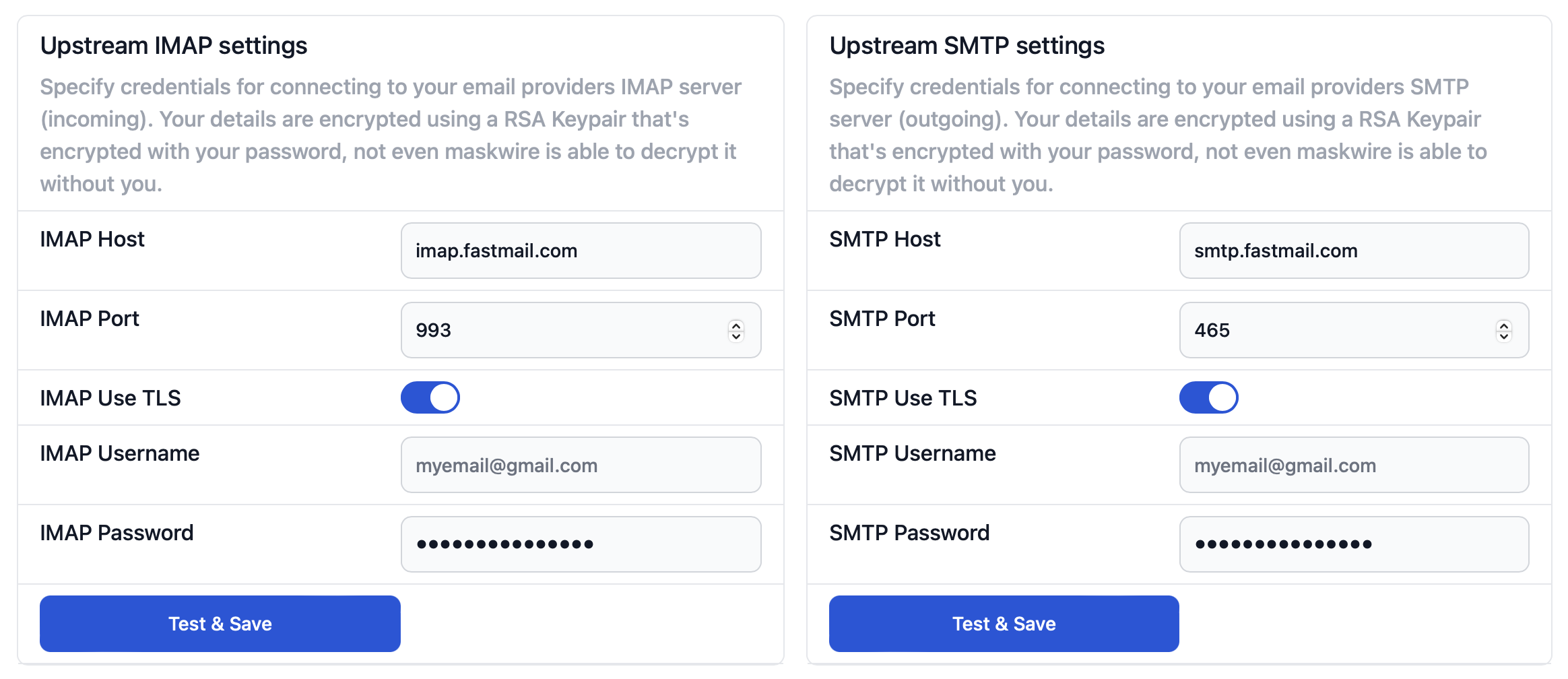
If you are unsure about what to put here, check the help page of the email service you are using. For fastmail, that is https://www.fastmail.help/hc/en-us/articles/1500000279921-IMAP-POP-and-SMTP#imap.
Make sure to enter the details exactly how described on your service page. For example, if your email service needs SSL or TLS, check the "IMAP Use TLS" checkbox.
Click "Test & Save" to test the connection and see if maskwire is able to connect.
2. Setting up maskwire on your device
Once finished, you can continue with setting up maskwire on your actual device or email client. Navigate back to the Home tab and take notice of the IMAP and SMTP credentails. Use those with your actual email client (Apple Mail, Thunderbird, Samsung Mail, Gmail, etc).
Make sure to use the maskwire username/password that is listed, and not the username/password of your email service (for example Fastmail).
If you use an Apple device together with Apple Mail, a configuration profile is available that automates the entire setup process.
Note: After setting up maskwire, disable your existing email account in your email client to not have duplicate messages.
3. Start using maskwire
Congratulations, you have now setup maskwire and are ready to enable tweaks and tools. Head to the "Toolbox" tab, find the features that interest you and enable what you want to use.
Check the "Tools & Features" category within this help page to get an overview of what maskwire can do for you